
Prepare#
Install irori and Git. If you want to use AI, install your preferred CLI and sign in before using it in irori.
Try a copy of your notes or an empty folder first to get familiar with the interface and saving.
Open a hibachi and write#
- Choose Open a KB folder on the startup screen and select your notes folder.
- Check its name in the registration screen and open the folder.
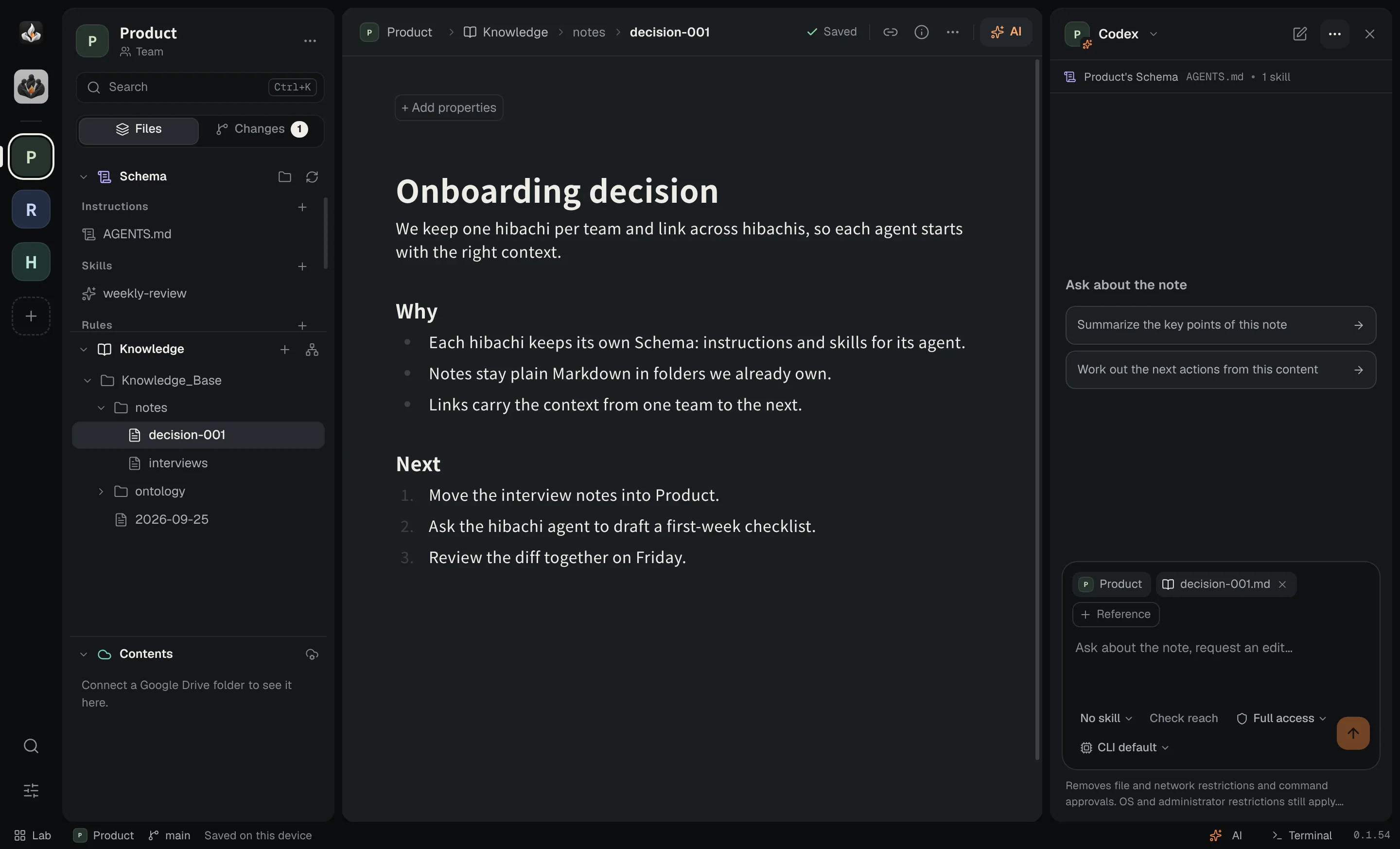
- Open a Markdown file in Knowledge on the left, or add a note to start a new one.
- Write a heading and some text. Changes save automatically.
To work with several hibachis, select them on the startup screen and create a workspace. See hibachis and workspaces.
Ask AI to continue#
Keep the note open, open the AI panel, and choose a CLI and model. For example, send “Summarize this note and add the next things to investigate.”
Permission requests and questions appear in the panel. Review the note and its changes after the agent finishes. For work across knowledge bases, use irori mode.
A hibachi agent starts with full access when its CLI supports it. This lets it change files; check the panel's access setting before running it. See access modes.